

You probably opened X to finish a post you were sure you saved, tapped around for a few seconds, and felt that small wave of panic. The draft had the good hook. Maybe it was a thread you were building between meetings. Maybe it was a reply you wanted to get exactly right. Now it looks gone.
That’s why how to find drafts in twitter is only half the job. The other half is understanding why drafts go missing, what X saves, and what habits keep your work from disappearing the next time you get interrupted.
That Moment Your Perfect Tweet Vanishes
Losing a draft is frustrating because it never happens when you have spare time. It happens when you're juggling customer messages, shipping work, or trying to post something timely before the moment passes.
Most guides stop at “tap compose, then tap Drafts.” That helps if the draft is still there. It doesn’t help when storage is the issue, account switching, or a cleanup action that wiped local app data. That gap matters because draft recovery and loss prevention strategies are almost completely absent from existing guidance, even though questions about storage duration, export options, and what happens when you log out are rarely addressed, as noted in Business Insider’s guide to finding Twitter drafts.
What people usually assume
The common assumption is simple. “If I saved it, X must have it somewhere.”
That’s not a safe assumption.
A native draft is useful as a quick holding area, but it isn't a reliable archive. If you treat drafts like long-term storage, you eventually run into the exact problem that brought you here.
Practical rule: If a post would annoy you to lose, don’t let the only copy live inside the app.
A better workflow starts with finding the draft, then adds a simple backup habit. That combination is what turns native drafts from a source of stress into a real productivity tool.
Finding Drafts on the Twitter Mobile App
The mobile app is often used for saving drafts, and it’s the fastest place to check first. The path is short once you know where X hides it.
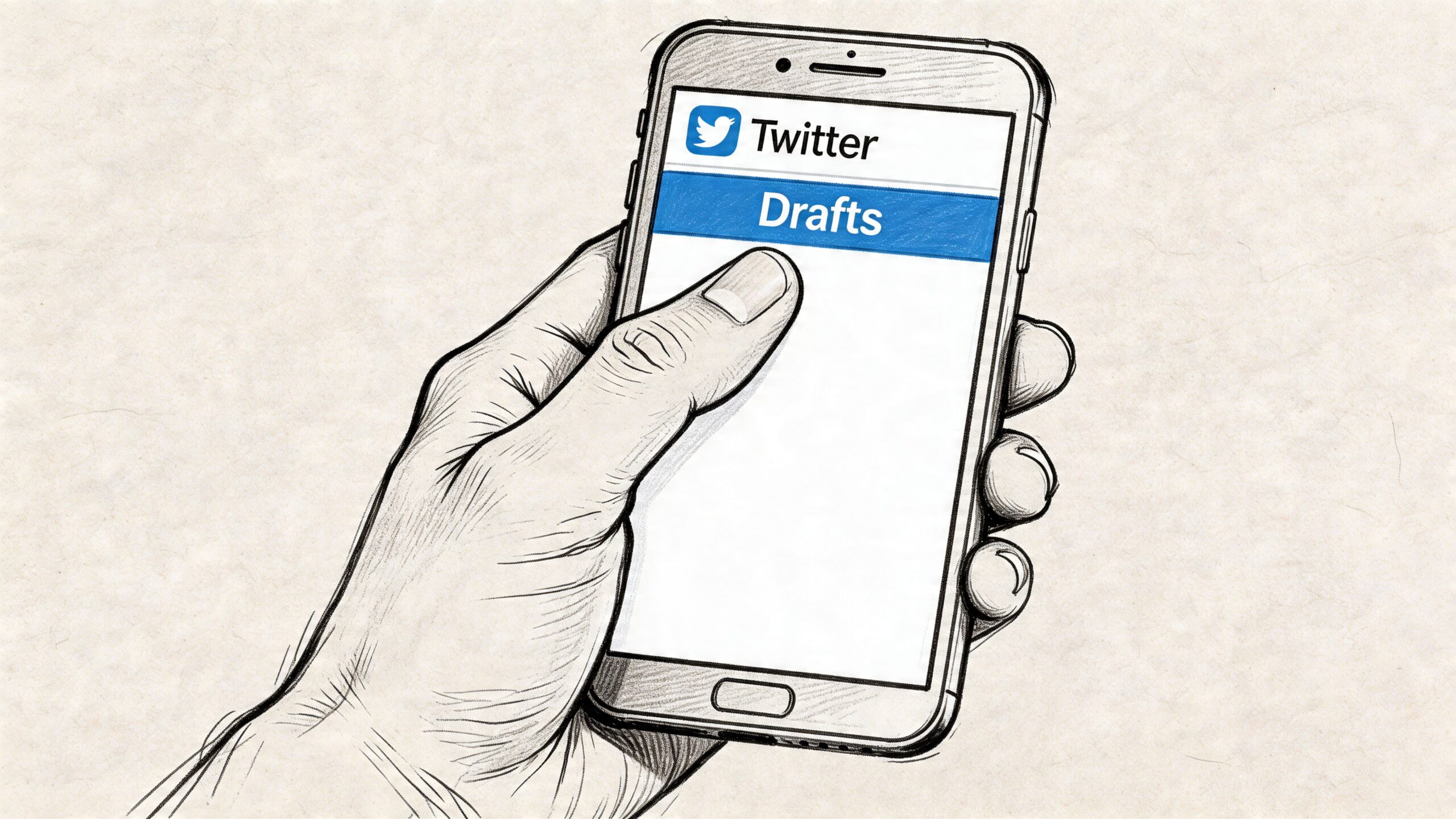
According to this YouTube walkthrough on finding Twitter drafts, to find drafts on mobile, tap the blue + compose icon, then select Drafts in the top right. The same source notes that this feature is essential for over 80% of active mobile users, and drafts saved on your phone are only accessible on that phone.
The fastest way to check
Use this sequence:
- Open the X app.
- Go to the main home screen.
- Tap the blue + compose button in the bottom-right area.
- Look in the top-right corner of the composer for Drafts.
- Tap it to open your saved posts.
If your app version doesn’t show it immediately, open the composer and look around the top area first. Some versions also make you swipe up inside the composer before the drafts view appears.
Small cues that help
There are a couple of details worth noticing:
- Number badge sometimes appears: On some app versions, the compose area shows a small indicator when drafts exist.
- Most recent draft comes first: If you saved multiple ideas, the newest one is usually easiest to find.
- Threads save here too: If you started a multi-post thread and backed out correctly, it should appear in the same draft list.
A practical example. Say you write the first three posts of a thread about your product launch, get interrupted by a call, and save it. Later, you don’t need to rebuild the thread from memory. Open compose, tap Drafts, and resume where you left off.
If one tap doesn't work
Some users have better luck with the gesture-based path shown in this demo:
If you tap once and land straight in the composer with no obvious drafts button, don’t start digging through settings. Drafts live off the composer, not in account settings or profile menus.
Tap compose first. Search second.
That one habit saves time because most “missing” mobile drafts are being looked for in the wrong place.
Locating Drafts on the Twitter Website
Desktop is different enough that it trips people up. The wording often changes, and the saved items may show up as Unsent Posts or Drafts instead of matching the mobile interface exactly.
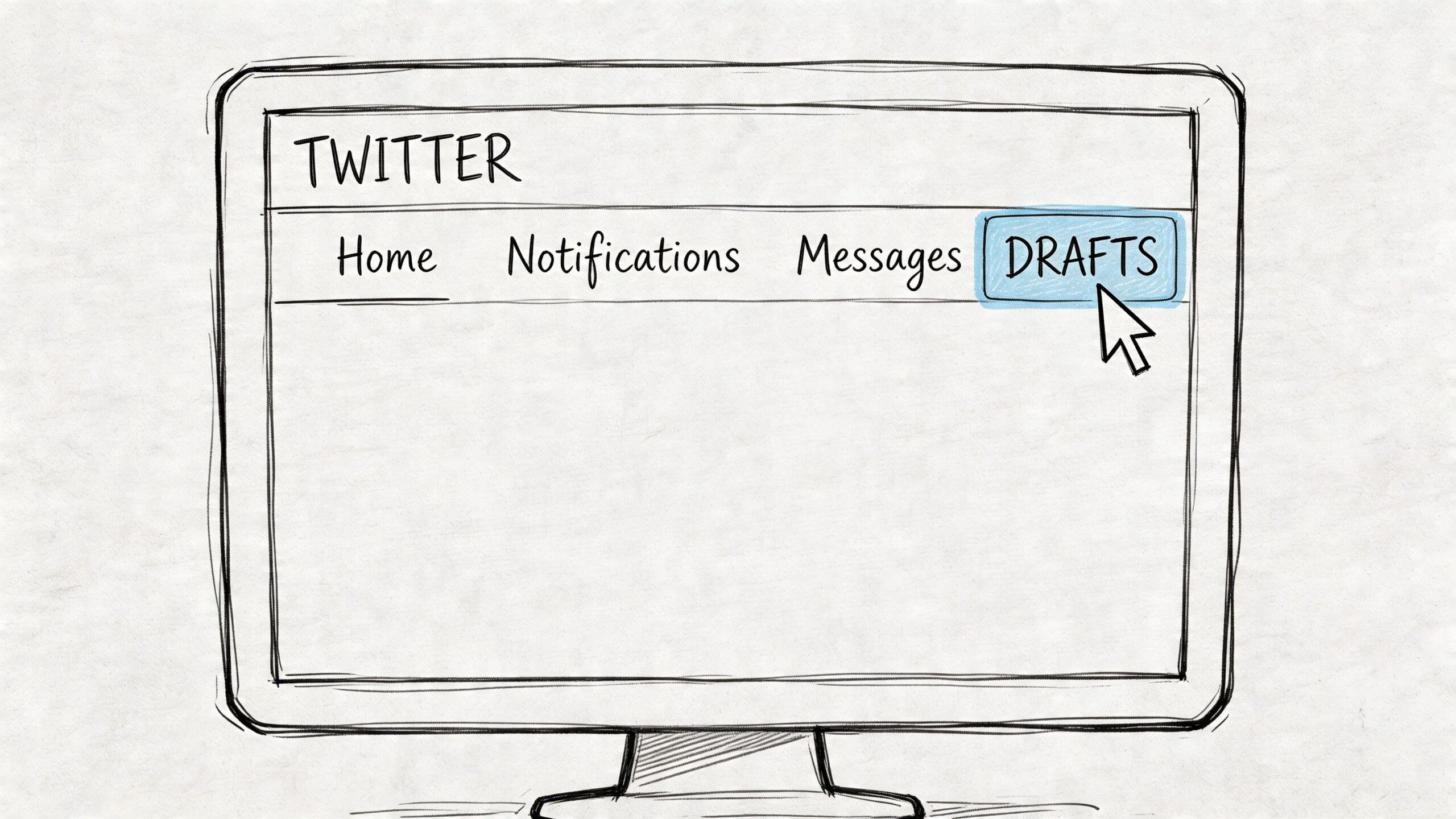
Where to click on web
If you're on x.com in a browser:
- Click the Post button in the left navigation.
- Wait for the post composer popup to open.
- Look in the top-right area for Unsent Posts or Drafts.
- Click that label to open your saved web drafts.
This is the right move if you drafted from your laptop and want to finish with a proper keyboard.
The part that causes the most confusion
Web drafts and mobile drafts don't behave like one shared folder. If you wrote something on your phone, then opened your desktop expecting it to appear there, you may search for ten minutes and still come up empty.
That doesn’t automatically mean the draft is deleted. It often means you’re checking the wrong platform.
For people who regularly publish from both devices, it helps to think of native drafts as temporary scratch space, not as a universal content system. If you want a broader X workflow, Postful has a deeper set of platform tips in its X and Twitter blog resources.
The quickest fix for a “missing” draft is often going back to the exact device where you created it.
That simple check solves more draft hunts than any advanced troubleshooting step.
Why Your Twitter Drafts Disappear and How to Stop It
When drafts disappear, the cause usually isn't mysterious. It’s mechanical.
The key detail is this. According to this YouTube explanation of Twitter draft storage, Twitter drafts are stored locally in your device's storage in a SQLite database and are not synced to the cloud. That means clearing your app cache can permanently delete all your drafts.
What actually wipes drafts
Three situations show up again and again in practice:
- Cache clearing: Phone cleanup tools and manual cache clearing can remove local app data.
- Logging out or reinstalling: Anything that resets the app environment can leave you without the draft you expected.
- Switching devices: If you save on one device and check another, you may think the post vanished when it never lived there.
The important part is that “saved” does not mean “backed up.”
The habits that protect your work
You don’t need a complicated system. A few boring habits do most of the work.
- Copy important posts elsewhere: If the wording matters, paste it into Notes, Apple Notes, Google Keep, or a document before you leave the composer.
- Avoid aggressive cleanup apps: If your phone routinely clears temporary data, treat native drafts as fragile.
- Check after saving: Reopen the draft list once, right after saving, so you know the post landed there.
- Keep a separate ideas bank: Use native drafts for active writing, not for every unfinished thought you’ve had all month.
A simple recovery mindset
If a draft is missing, go in this order:
- Check the same account.
- Check the same device.
- Check the composer, not settings.
- Think about recent actions like cache clearing, reinstalling, or logging out.
Don’t waste time looking for cloud sync that isn’t there.
That one mental model changes how you use drafts. Once you understand they’re local and temporary, you stop treating them like a vault and start treating them like a staging area.
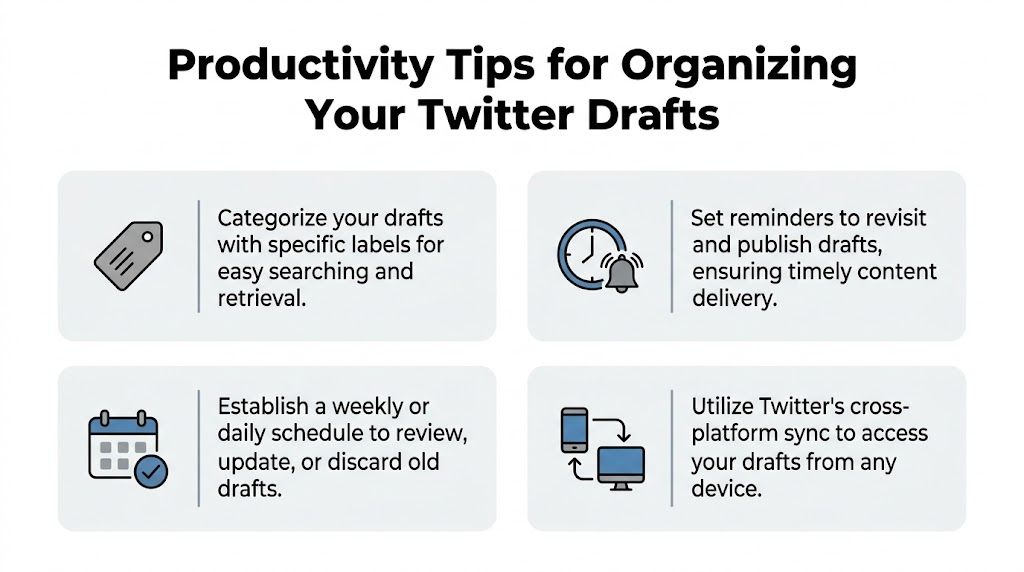
Productivity Tips for Organizing Your Drafts
A draft list gets messy fast. The native X app doesn’t give you much structure, so the best approach is to add lightweight structure yourself.
Use visual prefixes that are easy to scan
Start drafts with a symbol or short label. That makes the list easier to skim when everything is sorted mainly by recency.
Examples that work well:
- 💡 Idea for rough thoughts you want to develop later
- 🧵 Thread for multi-post concepts
- 📢 Promo for launch posts, offers, and announcements
- ↩ Reply for responses you want to think through before posting
If you save five drafts in one day, these prefixes make the right one obvious at a glance.
Run a weekly cleanup
Open your drafts once a week and make decisions. Don’t let the folder become a graveyard of almost-posts.
A simple review looks like this:
- Finish it: The idea is still strong and worth posting.
- Schedule it: The copy is done, but the timing matters more than speed.
- Delete it: The moment passed, or the idea wasn't that good.
If scheduling is part of your routine, Postful’s guide on how to schedule Twitter posts is a useful next step for moving finished ideas out of drafts and into a real publishing flow.
Keep one purpose per draft
Don’t pack multiple ideas into a single saved post. If one draft starts as a customer tip, turns into a promotion, then becomes a half-thread, it gets harder to finish.
Clean drafts lead to faster posting.
The best draft folder is not the biggest one. It’s the one where every saved item has a clear next action.
A Better Workflow Beyond Native Drafts with Postful
Native drafts are fine for fast capture. They’re weak as a content system.
If you're running a business, posting for a side project, or trying to stay consistent across more than one network, you need something sturdier than local app storage. That’s where tools built for content workflows start to make sense. If you're comparing options, this roundup of social media marketing automation tools is a useful overview of the category.
Here’s the practical difference with Postful. Instead of keeping your ideas trapped inside one device, you can turn rough thoughts into planned content with AI brainstorming, scheduling, reuse, and multi-network syndication.
Postful features for draft management
| Feature | Benefit for Solopreneurs |
|---|---|
| AI brainstorming | Turns a half-formed idea into usable post angles when you’re short on time |
| Drafting workspace | Keeps your content in one place instead of scattered across app-local drafts |
| Scheduling | Moves finished posts out of “I’ll publish this later” mode |
| Multi-network syndication | Lets one good idea work across X, LinkedIn, and Instagram |
| Reuse and remixing | Helps you revive older ideas instead of rewriting from scratch |
For operators who want a cleaner publishing routine, Postful’s own update on scheduling social media posts in release v0.6.5 shows the direction clearly.
If you only publish occasionally, native drafts may be enough. If content supports your business, a proper workflow beats a hidden app folder every time. Pricing for other tools varies, so check each product website for current details.
Frequently Asked Questions About Twitter Drafts
Do Twitter drafts sync between phone and desktop
No. Native drafts aren’t a shared cloud folder across devices. If you can’t find one, go back to the device where you created it first.
How do I save a thread as a draft
Write the thread in the composer, then back out and save it when X prompts you. If it saves correctly, it should appear with your other mobile drafts.
How long do drafts stay saved
There isn’t clear guidance on long-term draft retention in the sources above. In practice, drafts can remain available, but they’re risky to rely on as permanent storage because local app data can disappear.
Can I recover a deleted draft
Sometimes, but not reliably inside X itself. If the draft was cleared from local storage, there may be no in-app recovery option. Your best backup is a copy in notes, a document, or a content tool you use outside the app.
What should I use if I post often
If content is part of your business, look beyond native drafts and review some broader Top Social Media Automation Tools to see how teams handle planning, scheduling, and reuse more reliably.
If you’re tired of losing good ideas in native drafts, try Postful. It helps you brainstorm, draft, schedule, and reuse content across networks, so your work turns into more business instead of disappearing in an app folder.