

UTM parameters are simple text codes you add to the end of a URL. Their job? To tell you exactly where your website visitors are coming from. These little tags are the key to solving the marketing attribution puzzle, showing you precisely which campaigns, social posts, or emails are driving clicks and conversions.
They turn vague, confusing data into clear, actionable insights.
Why UTM Parameters Are Your Most Powerful Marketing Tool
If you're running ads, sending out newsletters, or posting on social media without UTMs, you're flying blind.
Imagine you see a sudden spike in traffic. Was it from that link in your Instagram bio? The paid Facebook ad you just launched? Or maybe it was the partner newsletter that went out this morning? Without proper tracking, all that valuable traffic gets dumped into broad categories like ‘Direct’ or ‘Referral’ in Google Analytics.
This lack of clarity makes it impossible to know what’s actually working. You're left guessing where to invest your time and budget, which is a recipe for wasted effort and missed opportunities.
This is the exact problem that Google Analytics UTM parameters were built to solve. Think of them as tiny name tags for your links, each one telling you the story behind every single click.
The 5 Core UTM Parameters Explained
At their heart, UTMs are built from five simple components that answer the most important questions about your traffic. We'll get into all of them, but the first three—source, medium, and campaign—are the ones you'll use constantly.
Here’s a quick breakdown of what each parameter does:
| Parameter | What It Tracks | Example Value |
|---|---|---|
| utm_source | The specific platform where the traffic originated. | facebook |
| utm_medium | The marketing channel, like paid ads or email. | cpc |
| utm_campaign | The name of your specific promotion or effort. | summer-sale-2024 |
| utm_term | The paid search keyword you're targeting. | blue-running-shoes |
| utm_content | Differentiates links within the same ad or email. | image-ad-1 |
Together, these parameters transform a standard link into a rich source of data. They turn a messy analytics report into a clear roadmap for growth.
Getting comfortable with these five tags is the first step toward optimizing your campaigns and truly understanding what drives visitors to your what is a landing page.
The acronym UTM stands for Urchin Tracking Module, a name inherited from Urchin, the web analytics software Google acquired back in 2005. These parameters have been a foundational part of Google Analytics for nearly two decades, and they're still the primary way marketers track campaign performance today.
Alright, let's get hands-on and move from theory to practice. The best way to really get a feel for google analytics utm parameters is to build one yourself. We'll walk through it right now using a tool I recommend for anyone starting out: Google's free Campaign URL Builder. This process will show you exactly how these simple tags transform a regular link into a powerful data-gathering tool.
Imagine you're running a "Summer Sale" for your e-commerce store. You’ve decided to promote it in two key places: a paid ad campaign on Facebook and a feature in a partner's email newsletter. While both links point to the same landing page, using distinct UTMs is what will tell you the real story in your analytics.
Using Google’s Campaign URL Builder
Google's Campaign URL Builder is just a straightforward form that pieces together the tagged URL for you, which helps eliminate pesky syntax errors. It’s the perfect starting point before you get into more advanced spreadsheet or software workflows. For things like Social Media Marketing campaigns, where every click tells you something valuable, precise tracking is non-negotiable.
Let's build the link for your paid Facebook ad first. You’d fill out the builder's fields like this:
- Website URL:
https://www.yourstore.com/summer-sale - utm_source:
facebook(The platform sending you the traffic.) - utm_medium:
cpc(The channel type, in this case, "cost-per-click" for a paid ad.) - utm_campaign:
summer-sale-24(The name you've given your promotion.)
The tool instantly generates the final, trackable URL. Just copy it and pop it into your Facebook ad. Now, every click from that specific ad will be properly categorized and accounted for.
Creating a Second Link for a Different Channel
Next up is the partner newsletter. You'll need a different link for this one. Even though the destination—your summer sale page—is the same, the source and medium are completely different.
Here’s how you’d set up that second link:
- Website URL:
https://www.yourstore.com/summer-sale - utm_source:
partner-newsletter(Something specific so you know which partner it is.) - utm_medium:
email(The channel is email marketing.) - utm_campaign:
summer-sale-24(The campaign name stays the same.)
Notice how we kept the utm_campaign value—summer-sale-24—consistent across both links? This is key. It allows you to filter your Google Analytics data later to see the total performance of the entire summer sale, while still letting you drill down to see whether Facebook ads or the partner email drove better results.
This is marketing attribution in a nutshell: tracking user actions and turning them into organized, usable data.
As you can see, UTMs are that critical middle step. They’re what transform a flood of raw traffic into structured data that you can actually analyze for campaign performance.
A Productivity Workflow for Clean Data
Building links one by one is fine when you're just getting started, but it gets messy and error-prone fast. A simple but effective workflow is to set up a basic Google Sheet to standardize and store all your links. Trust me, this will save you from the inconsistent data headaches that plague so many marketing reports.
Your spreadsheet can have columns for each UTM parameter, the base URL, and the final generated URL. This creates a central log, ensuring everyone on the team uses the same naming conventions.
Pro Tip: Always use lowercase for your UTM parameters. Google Analytics is case-sensitive, which means
-) or underscores (_) instead of spaces.
Once you have your long, tagged URLs, you'll often want to clean them up, especially for social media posts. The next logical step in your workflow is to use a link shortener like Bitly or TinyURL to make them look much tidier. A simple system like this ensures your tracking is reliable from day one and lays a solid foundation for accurate analysis down the road.
Create a Bulletproof UTM Naming Convention
Getting your first few UTM links out the door feels like a win. But this is where the wheels can come off for a lot of marketers. A single stray capital letter or an inconsistent campaign name can completely wreck your tracking, turning your Google Analytics reports into a useless, jumbled mess. A solid UTM naming convention isn't just a "nice-to-have"—it's the bedrock of reliable data.
Without a system, you'll quickly find yourself staring at fragmented reports. Seeing utm_source=facebook, Facebook, and fb.com listed as three separate sources isn't just annoying; it forces you to manually stitch together performance data, defeating the whole point of tracking in the first place.
The Real Cost of Inconsistent UTMs
The problem goes deeper than just messy reports. In Google Analytics 4, sloppy tagging can get your hard-earned traffic dumped into the dreaded 'Unassigned' channel group. This is GA4’s way of saying, "I have no idea where this came from." Your paid social campaigns start looking like they're underperforming, not because they are, but because GA4 can't correctly categorize the traffic.
Most GA4 attribution issues I see trace back to a few common mistakes: using platform shortcuts like 'ig' or 'fb', mixing capitalization ('LinkedIn' vs. 'linkedin'), or forgetting to add utm_medium to paid traffic links. For small businesses, this is a huge deal. When your UTMs are all over the place, a huge chunk of your traffic ends up in that 'Unassigned' bucket, and you're left guessing about your actual ROI. You can learn more about how naming conventions impact GA4 reports if you want to go deeper.
A bulletproof naming convention is your best defense against data chaos. By setting clear rules upfront, you ensure every click is categorized correctly, giving you a clean, reliable picture of campaign performance from day one.
The Core Rules of UTM Consistency
Look, this doesn't need to be complicated. A great UTM convention is built on a few simple, powerful rules that everyone on your team follows without exception. Think of it as your single source of truth for all campaign tracking.
Here are the non-negotiables:
- Always Use Lowercase: Google Analytics is case-sensitive. That means
utm_source=LinkedInandutm_source=linkedinshow up as two different sources. Make lowercase a hard and fast rule for every parameter. No exceptions. - Use Hyphens or Underscores, Not Spaces: URLs can't handle spaces. Browsers will convert them to
%20, which looks ugly and can sometimes break links. Stick with hyphens (-) or underscores (_). My personal preference is hyphens, likespring-sale-24. - Keep It Simple and Clear: Don't get cute or cryptic. The
utm_campaignyou set today should still make sense to you (and your team) six months from now. Something likeq1-promo-24-v2is a lot more helpful thanpromo_123_final_update.
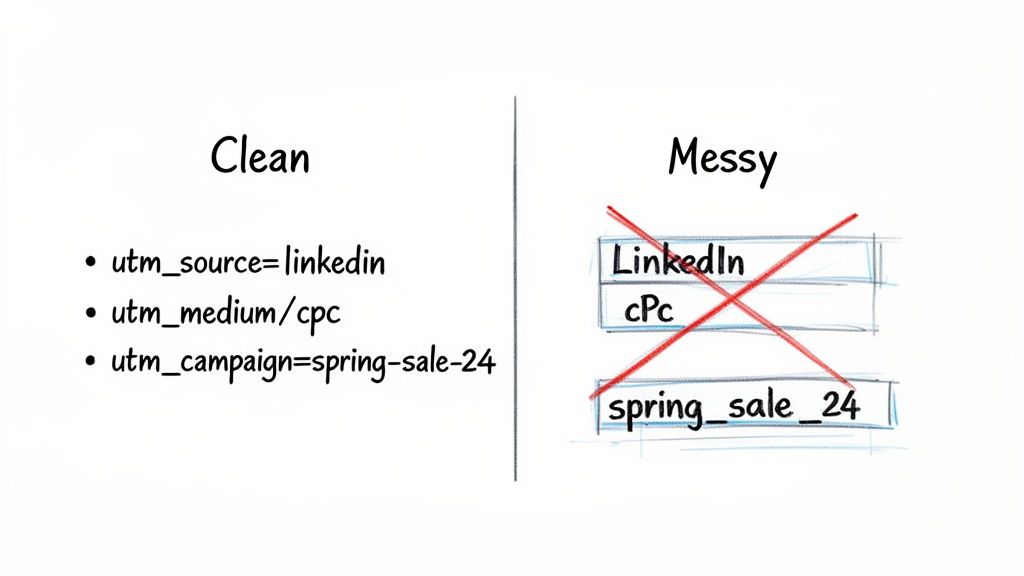
See how clean that is? Simple, lowercase, and hyphenated values are the foundation of tracking you can actually trust.
Defining Your Parameter Values
Now, let's get specific. Consistency matters most for utm_source and utm_medium, because these two parameters directly tell GA4 how to group your traffic into default channels like Paid Social, Organic Social, and Email.
For utm_source:
Always use the platform's name, but pick one version and stick to it. For example, decide if you're using linkedin or facebook. Don't mix it up with li, LinkedIn, or facebook.com.
For utm_medium:
This is where you need a strict, predefined list. It’s what ensures your channel groupings are accurate. I recommend starting with these:
cpcfor any cost-per-click ads (Google, Bing, paid social, etc.).socialfor your organic social media posts.emailfor newsletters, automated sequences, or any email marketing.referralfor links from partner websites or influencer campaigns.
Let’s look at a practical example of a messy link versus a clean one for a Facebook ad.
Messy URL:?utm_source=FB&utm_medium=PaidSocial&utm_campaign=Spring%20Sale
Clean URL:?utm_source=facebook&utm_medium=cpc&utm_campaign=spring-sale-24
The second one is instantly readable and, more importantly, will be properly categorized by Google Analytics. A little discipline right now will save you from a massive analytical headache down the road. The best way to lock this in is with a shared template, which we’ll get into next.
Find and Analyze Your Campaign Data in GA4
You’ve built your links, adopted a naming convention, and your campaigns are now live. So, what's next? This is where the real value of using google analytics utm parameters kicks in. It's time to jump into Google Analytics 4 (GA4) and see all that hard work pay off with clear, actionable insights.
I'll be the first to admit, navigating GA4 can feel a little overwhelming at first. But finding your campaign data is actually pretty straightforward once you know where to look. This is where your standardized UTMs will really shine, turning what could be a messy report into a clean, organized view of your marketing performance.
Locating Your UTM Data in GA4 Reports
The main home for your campaign data is the Traffic acquisition report. This report is your go-to for understanding how users are discovering your website for the very first time.
Here’s the direct path to get there:
- From your GA4 dashboard, head to Reports in the left-hand menu.
- Under the 'Life cycle' collection, click on Acquisition.
- Finally, select Traffic acquisition.
By default, this report lumps your traffic into broad categories under 'Session default channel grouping'. To see your UTMs in action, you'll need to change the primary dimension. Just click the small dropdown arrow at the top of the first column and select either Session source / medium or Session campaign.
Just like that, the report will reorganize to show you the exact utm_source and utm_medium combinations or the utm_campaign names you created. Now you can see precisely which channels and specific campaigns are driving users, engagement, and conversions.
Turning Raw Numbers into Strategic Decisions
Finding the data is just the first step. The real magic happens when you start interpreting it to make smarter marketing choices.
Let's look at a practical example. You're promoting a new feature with a YouTube video and a link in your TikTok bio. Your UTMs might look something like this:
- YouTube:
utm_source=youtube&utm_medium=video&utm_campaign=new-feature-launch - TikTok:
utm_source=tiktok&utm_medium=social&utm_campaign=new-feature-launch
In the Traffic acquisition report, you can now directly compare 'youtube / video' against 'tiktok / social'. You can see which one brought in more users, had a higher engagement rate, or led to more newsletter sign-ups.
If YouTube is driving tons of traffic but few conversions, while TikTok brings in less traffic but more actual sign-ups, you have a clear signal on where to focus your efforts. This level of detail is crucial for understanding your how to measure social media roi.
In GA4, UTM parameters are tracked by default, and new features like
utm_campaign_idhave been introduced to make campaign tracking even more powerful. For small business owners juggling multiple channels, this capability finally lets you see exactly where your conversions come from and which campaigns are truly working. Discover more insights about GA4 UTM enhancements on measuremindsgroup.com.
Using Comparisons to Isolate Campaign Traffic
Sometimes, you want to analyze the behavior of users from a specific campaign across your entire site, not just in one report. For this, GA4's Comparisons feature is perfect. It lets you create a temporary segment of your audience based on your UTM parameters.
To use it, just click Add comparison at the top of almost any report. You can then set a condition to include only users where 'Session campaign' exactly matches the name of your campaign, like 'new-feature-launch'.
Once that's applied, every report you view will show two sets of data: one for all users and one exclusively for users who arrived from that specific campaign. This lets you answer much deeper questions:
- Do users from my spring sale campaign view more product pages?
- Are visitors from my partner newsletter more likely to complete a purchase?
- Which landing pages are most popular with traffic from my paid Facebook ads?
This workflow elevates you from simply tracking clicks to truly understanding user behavior. By isolating and analyzing traffic from your UTM-tagged links, you transform raw data into a strategic guide for future marketing decisions, ensuring every campaign is more effective than the last.
Streamline Your Workflow with UTM Templates
If you're still building UTM links by hand for every social post, ad, or email, you're caught in a productivity trap. It's not just a mind-numbing task; it's a surefire way to introduce typos and messy data that completely undermines your tracking.
The real secret to clean analytics is making UTM tagging a natural, almost invisible part of your everyday workflow. That’s where templates and a bit of automation come in. By setting up a standardized framework you can copy and paste, you build consistency right into your process. This one small change ensures every link is tracked perfectly without adding any friction to your day.
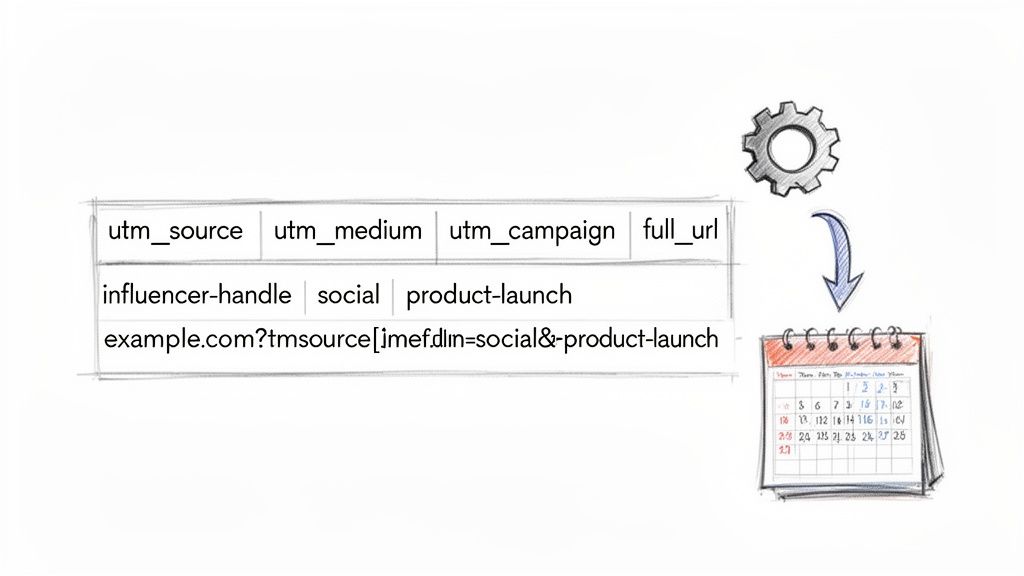
Ready-to-Use UTM Campaign Templates
The whole point of a template is to take the guesswork out of the equation. Instead of reinventing the wheel every time you need a link, you just grab a predefined structure that already fits your naming rules. This is a game-changer for recurring activities like your organic social media schedule or weekly newsletters.
To get you started, here are a few practical google analytics utm parameters combinations you can steal and adapt for your own campaigns.
| Channel/Activity | utm_source | utm_medium | utm_campaign |
|---|---|---|---|
| Organic Social Post | facebook |
social |
q3-content-promo |
| Paid Instagram Ad | instagram |
cpc |
fall-collection-launch |
| Weekly Newsletter | newsletter |
email |
weekly-digest-09-24 |
| Influencer Collab | influencer-handle |
referral |
product-unboxing-24 |
Think of these as your base. For that influencer collaboration, for example, you’d simply swap influencer-handle with their actual username (like sarah-styles) and tweak the campaign name to match the promotion. Done.
Automating UTM Creation in Your Workflow
Templates are a huge leap forward, but you can take it a step further by weaving UTM creation directly into the tools you already use every day. This eliminates the need to constantly flip over to a URL builder, saving you time and cutting down on human error.
Many modern marketing tools have UTM builders baked right in. For example, social media schedulers like Buffer or HubSpot allow you to automatically add custom UTM parameters as you schedule posts, making tracking a seamless part of content creation.
Productivity Tip: The most efficient workflow I've seen integrates UTM creation right into the content calendar. A simple Google Sheet with a formula can automatically stitch together your base URL and your parameters, spitting out the final trackable link in a new column. It creates a single source of truth for the whole team.
For instance, you can use a basic concatenation formula in a spreadsheet like this:
=A2&"?utm_source="&B2&"&utm_medium="&C2&"&utm_campaign="&D2
This formula just grabs the URL from cell A2 and tacks on the source, medium, and campaign from the cells next to it. Simple, but incredibly effective.
An Example Influencer Campaign Workflow
Let's walk through a real-world scenario. Imagine you're launching a new product and have teamed up with an influencer named "Jenna Reviews" on Instagram.
Here’s a productive workflow:
- Define the Campaign: First, you give the campaign a clear name, like
new-product-launch-oct24. - Set the Source and Medium: The
utm_sourcewill bejenna-reviews, and theutm_mediumwill bereferral. This makes it crystal clear that any traffic came from her specific efforts. - Generate the Link: Using your spreadsheet template or social media tool, you generate the full URL.
https://yourbrand.com/new-product?utm_source=jenna-reviews&utm_medium=referral&utm_campaign=new-product-launch-oct24
- Shorten and Share: You give her a shortened version of this link to pop into her Instagram stories and bio.
By following this simple, templated process, you guarantee that every single click from Jenna’s content gets perfectly categorized in Google Analytics. You can measure her ROI with complete accuracy and see how her performance stacks up against your other marketing channels, all without any extra manual work. This is how you turn UTM tagging from a chore into a powerful, automated part of your marketing engine.
Common Questions About UTM Parameters
As you get your hands dirty with google analytics utm parameters, a few questions will almost certainly pop up. Getting them sorted out early will save you a ton of headaches and help you sidestep some common mistakes. Let’s walk through the ones I hear the most.
Do I Need to Add UTM Parameters to Every Single Link?
Absolutely not. In fact, you definitely shouldn’t. UTM parameters are built for one specific job: tracking inbound traffic from external marketing campaigns.
You should never use them on internal links—links that point from one page of your website to another. For instance, if you dropped a UTM-tagged link on your homepage pointing to your contact page, you'd completely mess up your analytics. It would overwrite the visitor's original source, making it look like they just arrived from a brand-new campaign instead of simply clicking around your site.
What's the Difference Between Source and Medium?
This is easily one of the most common stumbling blocks for anyone new to UTMs. But once it clicks, it’s actually pretty simple.
Here’s how I like to think about it with a practical example:
- utm_source is where the traffic is coming from. It’s the specific platform, like
google,facebook, ornewsletter. - utm_medium is how the traffic got to you. This is the broader marketing channel, like
cpc,social, oremail.
So, a paid ad you’re running on Facebook would look like utm_source=facebook and utm_medium=cpc. An organic post on the same platform would be utm_source=facebook and utm_medium=social. The source is the same "where," but the "how" is different, which is critical for analysis.
How Do UTM Parameters Affect My SEO?
The short answer is: they don't. UTM parameters have zero direct impact on your SEO rankings.
Search engines like Google are smart enough to recognize these are just tracking tags. They know to ignore them for indexing purposes and understand that a URL with UTMs and one without are pointing to the exact same piece of content.
Where they can help is indirect. The data you get from your UTMs tells you which channels are driving high-quality traffic—the kind that engages and converts. That insight is gold for your SEO strategy, helping you double down on what’s actually working. For instance, if you see your utm_source=linkedin traffic has a high conversion rate, you know to invest more time creating content for that platform.
Can I See UTM Data in Real Time in GA4?
Yes, you can! This is a fantastic feature in Google Analytics 4, especially for testing your workflow.
Head over to the 'Realtime' report in GA4. You can literally watch as people click your new UTM links and see their source, medium, and campaign data pop up as it happens.
This is my go-to move before launching any major campaign. It's an incredibly useful sanity check to confirm your links are firing correctly. A quick five-minute test can give you the confidence that your data will be clean and accurate from the very first click.
Ready to grow your reach on social media without the grind? Postful is an AI-powered social media tool built for founders and all-in-one doers. We make content creation simple so you can show up consistently and connect with your audience. Join the Postful waitlist today to secure early access.