
Thinking about learning how to upload videos to X (formerly Twitter)? If you’re a small business or solopreneur, it’s not just worth the effort—it’s one of the best ways to grow right now.
Why Video on X Is Your New Secret Weapon
If you're only posting text, you're fighting for attention with one hand tied behind your back. The feed on X is a fast-moving stream of information, and nothing stops the scroll quite like motion. Video is the single best tool you have to make people pause and listen.
This isn't just a hunch. We’ve seen it time and time again: posts with video get more eyes, more shares, and more engagement. Your message simply lands better.
It’s a Visual World Now
The platform’s shift to X wasn't just a name change; it was a clear signal that video is now at the heart of the experience. For small businesses, this is a huge opening. A quick video can show off a product, feature a happy customer, or just put a face to the brand. It’s a way to tell a richer story than text ever could.
Look, learning to post a video on X isn't just another task on your to-do list. It's a core skill for modern marketing. The return you get in visibility and connection is massive.
This isn’t the old Twitter anymore. The platform's official rebrand to X, as seen on its Wikipedia page, was a pivot toward a video-first future. It’s now built into the platform's DNA.
From Views to Real Business Growth
The numbers don't lie. A 2025 Sprout Social survey found that since X's rebrand in 2023, video posts are up 142% in daily use among small businesses. What’s even more telling is that 64% of solopreneurs reported a jump in lead generation just by adding 140-second video clips to their mix.
This means your videos can be a direct line to real, measurable growth. With the right strategy, you can turn those views into a predictable engine for your business.
- Get More Leads: Use short, punchy videos to show what you know and point people back to your site.
- Build a Real Audience: Share behind-the-scenes moments or quick tips. It’s how you build genuine connection, not just a follower count.
- Stay Memorable: People remember what they see. A video makes your brand stick in their minds far better than a simple text post.
You don't need a film degree to make this work. And if you're looking for more ways to make the platform work for you, our deep dive into the X (Twitter) platform is a great place to start. By using smart tools like Postful to schedule and manage your content, you can turn this trend into a consistent driver for your business.
Getting Your Video Specs Right for X
Before your video can make waves, you have to get it through the door. Think of X's technical rules as a pre-flight check for your content. Getting these details right from the start means no frustrating upload errors, no weird pixelation, and no wasted time.
The whole point is to give the platform a file it can easily understand, so your followers get a smooth viewing experience whether they're on their phone or a desktop.
Out of all the formats, MP4 and MOV are the most common. I almost always recommend sticking with MP4. It’s the safer bet for compatibility across the board. If you want to go deeper, understanding the best video format for quality and compatibility is a great next step.
X Video Upload Specifications (Standard vs. Premium)
The specs you need to follow depend on whether you have a standard account or an X Premium subscription. The difference in 2026 is pretty significant, especially for file size and video length.
Here's a quick breakdown of the limits for each account type:
| Feature | Standard User | X Premium Subscriber |
|---|---|---|
| Max Length (Desktop) | 2 minutes, 20 seconds | 2 hours |
| Max Length (Mobile) | 2 minutes, 20 seconds | 10 minutes |
| Max File Size | 512MB | 16GB |
| Max Resolution | 1920×1200 or 1200×1900 | 1920×1200 or 1200×1900 |
| Recommended Format | MP4 (H.264 / AAC) | MP4 (H.264 / AAC) |
| Max Frame Rate | 60 FPS | 60 FPS |
As you can see, a Premium subscription opens up the ability to post much longer, higher-quality content, but the core resolution and format recommendations stay the same for everyone.
Standard User Specs (The Essentials)
For most accounts, the standard limits are all you need. These rules are designed to keep videos loading quickly in the feed.
- File Format: Your best bet is MP4 using an H.264 codec and AAC audio. This is the gold standard.
- File Size: Keep it under 512MB.
- Video Length: You get up to 2 minutes and 20 seconds (that's 140 seconds).
- Resolution: A standard 1080p (1920×1080) video is perfect. The maximum is 1920×1200 or 1200×1900.
- Frame Rate: You can go up to 60 FPS, but honestly, 30 FPS is great for most content and keeps file sizes down.
Think of these requirements as X's native language. When you give it a file it understands, everything just works better. It's interesting to see how different platforms have their own quirks; our guide to the Instagram video format shows just how unique each one's needs are.
Upgraded Perks for X Premium
X has come a long way. When native video first launched back in 2015, everyone had the same 140-second limit. Now, as of 2026, X Premium subscribers get a massive upgrade.
With an X Premium subscription, you can upload videos up to 2 hours long from desktop and 10 minutes from mobile. The file size limit also jumps to a whopping 16GB.
This allows for things like full podcast episodes, in-depth tutorials, or event recordings right on the platform. For example, a podcaster can now upload an entire interview, making their X profile a primary destination for their content. A software developer could post a full-length, in-depth coding tutorial. The benefits are clear—more video means more engagement and more opportunities to connect with your audience.
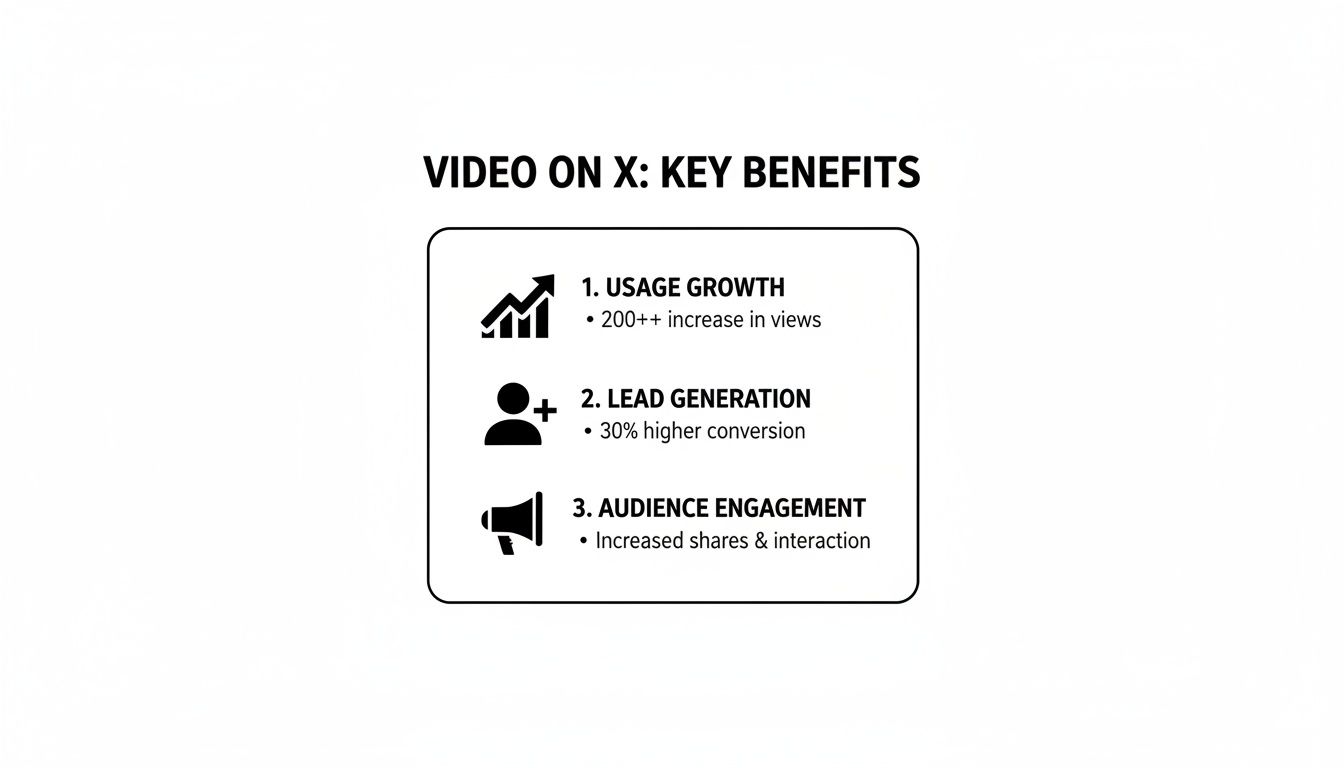
The data here shows a clear trend: using more video directly impacts things like lead generation. Whether you’re a standard user or a premium subscriber, getting the technical specs right is the first step to making sure your content can deliver those kinds of results.
A Practical Walkthrough for Uploading Your Videos
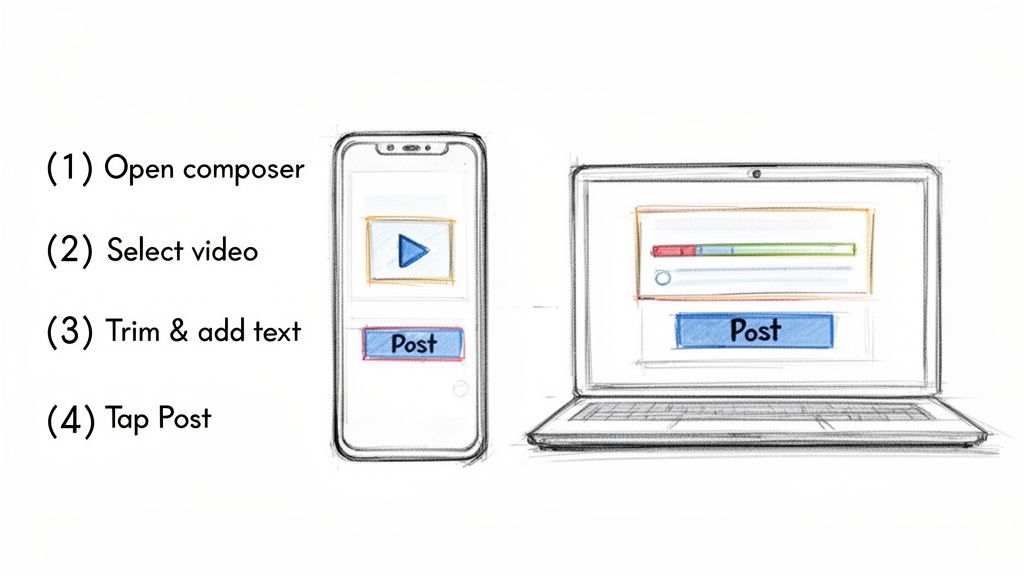
Alright, let's get your videos off your hard drive and onto X. The process is pretty simple, but the little details between desktop and mobile can trip you up.
Maybe you just finished editing a slick 90-second client testimonial on your laptop. Or perhaps you’re a designer who just captured a quick phone recording of a new logo animation you want to share immediately.
The steps are slightly different for each, but once you run through them a few times, it all becomes second nature.
Uploading from Your Computer for Maximum Control
When I have a polished, pre-edited video, I always upload from my desktop. It just gives you way more control over how the final post looks, which is non-negotiable for brand content.
Start by hitting the “Post” button on the X website. You'll see an icon that looks like a little mountain landscape—click that to open your file browser and find your video.
Once you’ve selected it, X will start processing. Now comes the important part.
- Trim Your Video: X gives you a basic trimming tool. You can drag the start and end points to snip off any dead air or awkward pauses at the beginning or end.
- Choose a Thumbnail: This is the biggest reason to use the desktop uploader. You can scrub through the entire video to pick the perfect frame or, even better, upload a completely custom image. A great thumbnail makes a huge difference in whether people stop scrolling.
- Add Captions: You’ll also see an option to upload an SRT file for captions. I can't stress this enough—do it. It’s critical for accessibility and for hooking viewers who watch with the sound off (which is most of them).
After you’ve dialed that in, write your post, drop in your hashtags, and tag any relevant accounts. Then you’re good to go.
Uploading from Your Phone for Speed and Spontaneity
For sharing content on the fly, nothing beats the mobile app. It’s built for speed, making it perfect for live events, quick updates, or those authentic behind-the-scenes moments.
Just tap the blue “+” button in the bottom-right corner to open the post composer. From there, tap the media icon and grab a video from your phone’s gallery.
Pro Tip: Before you post, always watch the first three seconds of your video. That’s your entire window to grab someone's attention. If it’s not compelling, they’re gone.
The mobile app has a few editing tricks up its sleeve, too:
- Trimming: Like on desktop, you can drag the handles on the video timeline to shorten your clip and get right to the good stuff.
- Alt Text: Look for the "ALT" button on the video thumbnail. Take a moment to add a description—it makes your content accessible to people using screen readers.
- Location Tagging: If your video is tied to a specific place, like a conference or local shop, adding a geotag can give it a visibility boost in local searches.
Once your edits are done and you’ve written your text, do a quick check of your internet connection. A stable Wi-Fi connection is always a safer bet for video uploads than spotty cellular data.
And if you want to streamline this whole process even further, there are some great Twitter video tools out there that can help you optimize everything.
How to Make X Videos People Actually Watch
Knowing how to upload a video is one thing. Getting people to stop scrolling and actually watch it is another game entirely. On a feed that moves at lightning speed, your video needs a solid strategy to stand out.
The difference between a video that gets ignored and one that starts a conversation often comes down to a few smart choices. It all starts by remembering how people behave on X: they scroll fast, and most of them watch with the sound off.
Nail the First Three Seconds
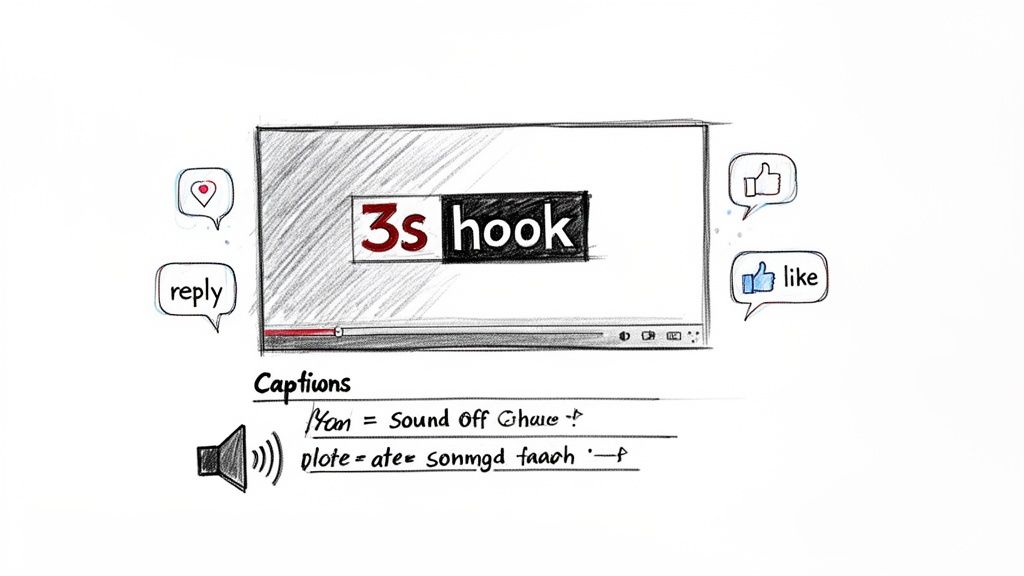
You have about three seconds to grab someone's attention before they're gone. That opening moment is everything. Don't waste it.
Start with immediate, eye-catching motion. Forget slow fades or lingering logos; jump straight into the most compelling part of the action. A quick cut, a surprising zoom, or a person's sudden movement can be enough to halt a scrolling thumb.
Another tried-and-true trick is using bold, on-screen text. A headline like "3 Mistakes You're Making" instantly signals value and creates a curiosity gap. People will stick around to find out what the mistakes are.
Always Optimize for Sound-Off Viewing
A huge chunk of your audience will see your video but never hear it. They could be on public transit, in a quiet office, or just scrolling during a meeting. If you don't have captions, your message is completely lost on them.
Always add closed captions to your videos. This isn’t just a nice-to-have; it's essential for social media video. Captions make your content accessible and ensure your message lands, which directly impacts how long people watch.
When you upload from a desktop, you have the option to add a dedicated .SRT file. This is the best way to get clean, professional-looking captions that make your video effective for every single viewer.
Create Thumbnails That Beg to Be Clicked
Your thumbnail is your video's first impression. A blurry, auto-generated frame from the middle of your clip just won't cut it. You need a custom thumbnail that’s clear, intriguing, and gives people a reason to hit play.
When uploading from your computer, you can scrub through the video to pick the perfect frame. Better yet, upload a completely custom image. A great thumbnail should:
- Show a compelling image: A person's face or a clear shot of a product works wonders.
- Use minimal text: Add a title or keyword that teases the content without cluttering the image.
- Lean on bold colors: Help it stand out in a busy, monochrome feed.
Spending a few extra minutes on a custom thumbnail is one of the highest-impact things you can do to boost your video views.
Brainstorm Real-World Content Ideas
At the end of the day, your videos need to be useful. Think about what your audience actually cares about and create content that solves a problem for them.
For example, a financial advisor could do a three-part series breaking down a complex topic like retirement planning. By ending each video with a question, they invite replies and build a community. An e-commerce brand could drop a quick, energetic video announcing a flash sale, driving immediate traffic and sales.
The goal is to create content with a clear purpose—whether it’s to educate, entertain, or drive action. That’s how you turn passive views into real traffic, engagement, and loyal followers.
Make Your Life Easier with Smart Scheduling Tools
For any busy solopreneur or small business owner, the biggest challenge with video isn't making it—it's posting it consistently. Manually uploading every video, especially when you're trying to hit those peak engagement times, can feel like a full-time job. It pulls you away from the work that actually runs your business.
This is where a good scheduling tool completely changes the game. It’s a huge productivity boost.
Instead of being chained to your desk, you can batch-create your videos and schedule them to go live whenever you want. This means your best content can drop right when your audience is most active, even if you’re in a client meeting, on a sales call, or finally taking a well-deserved break.
The Ultimate Productivity Hack
The best modern social media tools aren't just for posting. They're a strategic asset. Platforms like Postful are built from the ground up to give you back your time and make your content work harder for you.
Imagine blocking off a single afternoon to plan out your entire week of video content. You upload your clips, write your copy, and schedule everything to publish at the perfect time. This workflow does more than just keep you consistent; it frees up your mental energy for bigger-picture strategy.
This is how you scale your content without scaling your workload. You’re no longer just reacting to your social media calendar—you’re proactively running a content plan.
For example, a consultant I know schedules a series of short tip videos to go out every morning at 8 AM. It establishes a daily presence without the daily scramble. An e-commerce store can time a product demo video to launch at the exact moment their email newsletter hits inboxes, creating a powerful, coordinated push.
Here’s a peek at what a modern scheduling dashboard looks like. It’s all about clarity and control.
An organized interface like this gives you a bird's-eye view of your content calendar. It makes it simple to manage multiple posts across all your platforms, which is absolutely essential for building a brand that feels cohesive and reliable.
More Than Just a Scheduler
Look, the best tools do more than just schedule posts. They become a partner in your content creation process.
- AI for Brainstorming: Feeling stuck? A lot of new tools have AI features that can help you brainstorm video ideas your specific audience will actually care about.
- Simple Repurposing: Got one long-form video? A good tool can give you suggestions on how to chop it up into several short clips for different platforms.
- Building a Real Content Calendar: A solid scheduler helps you build a real content calendar, ensuring you have a steady stream of valuable videos going out to your followers.
If you’re trying to figure out which platform is right for you, we’ve put together a helpful comparison in our guide on the best social media scheduling tools. Picking the right tool can completely change how you approach content. It stops being a chore and starts becoming an automated engine for growth. Postful, for instance, is built for exactly this—helping solopreneurs turn their work into more business. You can check out the details on our features and early access over at the Postful website.
Common Questions About Uploading Videos to X
Even when you follow all the rules, uploading videos to X can sometimes throw you a curveball. It’s frustrating when things don't work as expected. Let's walk through some of the most common snags I see people hit and how to fix them fast.
Why Did My Video Quality Drop After I Uploaded It
We’ve all been there. You upload a crisp, beautiful video, only to see it turn into a blurry mess on the timeline. This isn't your fault—it's X's compression algorithm at work, optimizing files for fast loading across all devices.
The trick is to give the platform a better starting file. Think of it as giving the algorithm higher-quality raw material to work with, which leaves you with a much better final product.
- Export in 1080p. Always start with a high-resolution source file, ideally 1080p (1920×1080 pixels). Don't upload a 4K file, as the heavy compression can actually make it look worse.
- Use the right recipe. Stick to the MP4 format with an H.264 codec and AAC audio. It's the gold standard that X's platform prefers.
- Upload on a solid connection. A stable Wi-Fi connection is always better than cellular data, especially from your desktop. It helps prevent upload errors that can corrupt or degrade your file.
Following these simple steps will make a huge difference, ensuring your video on X looks nearly as good as the original on your computer.
Can I Edit a Video After It Has Been Posted
The short answer is no. Once your video is live on X, the file itself is locked in. You cannot edit, trim, or replace the video without deleting the entire post and starting over.
If you have an X Premium subscription, you do get a small window of time to edit the text of your post, but the video itself is untouchable.
The takeaway is simple: always, always double-check your video file before you hit that "Post" button. A quick final review can save you from the pain of deleting a post and losing all its initial engagement.
This is exactly why having a pre-post checklist is a lifesaver. That extra 30 seconds of review can prevent a major headache later.
What Is the Best Video Aspect Ratio
While X technically accepts a variety of video dimensions, they don't all perform equally in the feed. To really stop the scroll, you need to think about screen real estate.
There are two main aspect ratios you should focus on:
- 1:1 (Square): A square video (like 1080×1080 pixels) is your best bet for mobile. It dominates the screen, making it much more visually impactful and harder for users to just scroll past.
- 16:9 (Horizontal): The classic widescreen format (1920×1080 pixels) still works well, particularly for desktop viewers or for content that has a more cinematic or traditional feel.
So which should you choose? If you know your audience is primarily on their phones—and most are—the square format is the clear winner for grabbing attention and driving engagement.
Ready to turn your video strategy into a consistent, automated engine for growth? With Postful, you can schedule your video content, get AI-powered ideas, and build a powerful content calendar without the daily grind. Turn your work into more business by signing up for free early access at postful.ai.