
Yes, you can finally post to Instagram straight from your desktop. It’s a huge relief for anyone who’s ever been stuck in the frustrating loop of editing on a computer, then emailing or AirDropping files to their phone just to hit publish.
Why Posting From Your Desktop Changes Everything
For the longest time, Instagram was strictly a mobile-only affair. This forced small business owners and creators into clunky, inefficient workflows. You'd spend hours perfecting a video or a set of photos on your laptop, only to face the tedious task of transferring everything to your phone.
Thankfully, those days are over. You can now run your entire content process—from creation and editing to scheduling and publishing—all from your computer. This shift isn't just about convenience; it's about reclaiming hours of your time and boosting your productivity.
This is a bigger deal than you might think. According to Semrush, a surprising 43% of all traffic to Instagram actually comes from desktops. Even with its mobile-first reputation, a huge chunk of your audience is browsing on their computer. You can dig into more Instagram statistics and what they mean for your strategy.
I've found there are four main ways to get this done, each suited for different productivity needs.
- The Native Instagram.com Uploader: For quick, one-off posts directly on the website.
- Meta Business Suite: A free and surprisingly powerful tool from Meta for scheduling posts across both Instagram and Facebook.
- Third-Party Schedulers: Advanced platforms that add layers of analytics, AI-writing help, and multi-account management.
- The Browser "Trick": A handy workaround for accessing the mobile view when you need to post something that the desktop version doesn't support, like a quick, un-designed Story.
To help you figure out which method to use and when, I put together this quick decision tree. It'll guide you to the right tool based on whether you need to schedule content, post on the fly, or get access to every single feature.
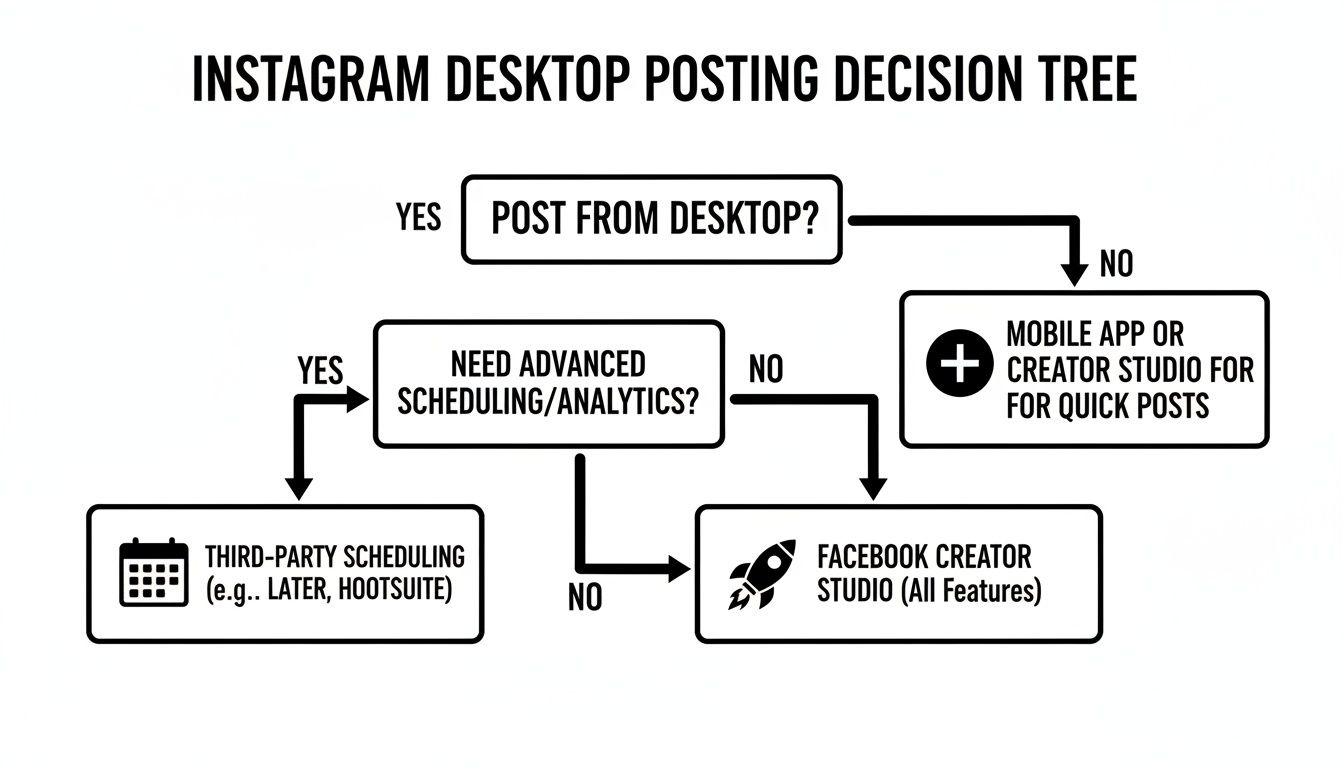
Ultimately, the best tool depends on your goal at that moment. Are you planning your content calendar for the week, or are you just trying to get a quick photo up? Each path offers a different way to streamline your workflow and get your content live without touching your phone.
Which Instagram Desktop Posting Method Is Right for You?
Choosing the right tool can feel overwhelming, but it really boils down to what you need to accomplish. This table breaks down the four main methods to help you decide which one fits your workflow best.
| Method | Best For | Supports Reels | Supports Stories | Scheduling |
|---|---|---|---|---|
| Instagram.com | Quick, simple posts directly from your browser. | Yes | No | No |
| Meta Business Suite | Scheduling content for both Instagram and Facebook. | Yes | Yes | Yes |
| Third-Party Tools | Advanced analytics, multi-account management, and AI features. | Yes | Yes (varies) | Yes |
| Browser "Trick" | Accessing the mobile interface for simple, on-the-fly posts. | No | Yes (basic) | No |
Whether you need the robust scheduling of Meta Business Suite, the advanced features of a third-party app, or just the simple convenience of the native uploader, there’s a desktop solution that will make your life easier.
Quick Posts With the Native Instagram Uploader
Sometimes you just need to get a post up on Instagram now, and you're already at your desk. For those quick, direct uploads, Instagram’s built-in desktop uploader is your best bet. There’s no need for extra tools or workarounds.
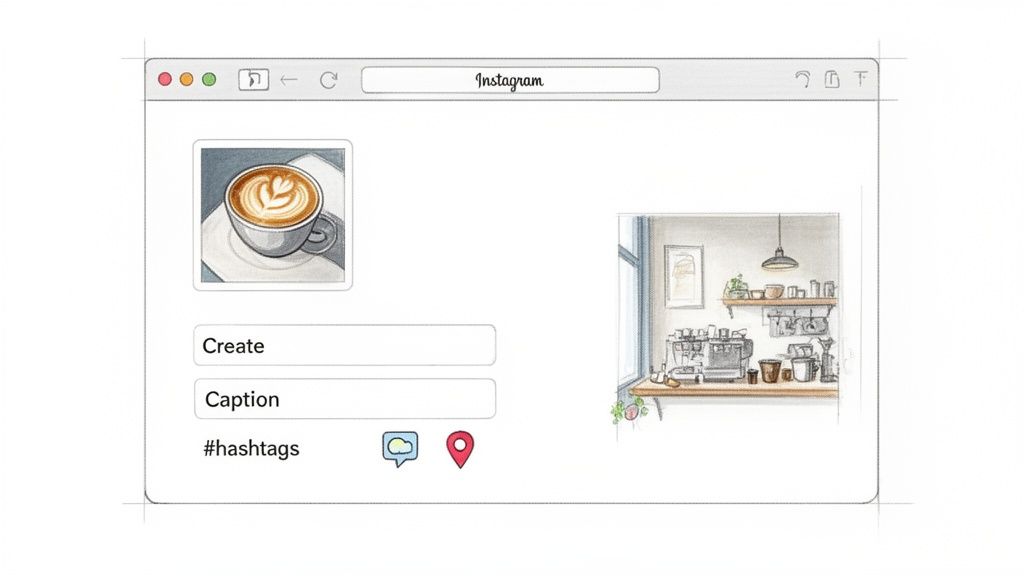
Just log into Instagram.com, and look for the “Create” button (it has a plus icon) in the menu on the left. Clicking it opens a simple pop-up where you can drag and drop photos or videos right from your computer.
I find this is perfect for in-the-moment updates that enhance productivity. Say you’re a real estate agent who just received professional photos of a new listing. Instead of fumbling with your phone, you can immediately upload a stunning carousel of the property from your computer, write a compelling caption, and get it live while you're still working on the listing paperwork. It’s seamless.
The desktop uploader handles single images, carousels, and even videos without any fuss. You can write your caption, add a location, tag other accounts, and fill in alt text—all from the same clean interface.
Know Its Limitations
While it’s great for speed, the native uploader isn't a full replacement for the mobile app. You can’t create or post Instagram Stories, and the editing tools for Reels are pretty stripped-down. Most notably, you won’t find Instagram’s trending audio library or any of the interactive stickers.
Because of this, I see it as the ideal tool for publishing polished content that’s already been edited and is ready to go. It excels at getting high-quality feed posts out the door quickly.
If you want to dig deeper into the mechanics of posting across different formats, you might find our complete guide on how to post on Instagram helpful.
Ultimately, when simplicity and speed are what you need for a feed post, the native uploader is hard to beat.
Schedule Ahead With Meta Business Suite
If you’re juggling both an Instagram and a Facebook page for your business, Meta Business Suite is the most straightforward, free tool to get organized. It’s built right in. For anyone wanting to post on Instagram from a desktop, this is where you move beyond simple, one-off uploads and start thinking like a content planner.
Think about your Monday morning. Instead of scrambling to figure out what to post today, you could sit down at your laptop and map out the entire week. A local cafe, for instance, could schedule a Reel for Monday showing off a new pastry, a carousel of customer photos for Wednesday, and a Story poll on Friday about weekend specials. All in one session, freeing up the rest of your week to focus on your business.
This kind of planning is becoming less of a luxury and more of a necessity. Projections show there will be over 350 million business accounts on Instagram by 2026, and small businesses are expected to make up 65% of that total. With that much competition, consistency is everything.
A Unified Content Calendar
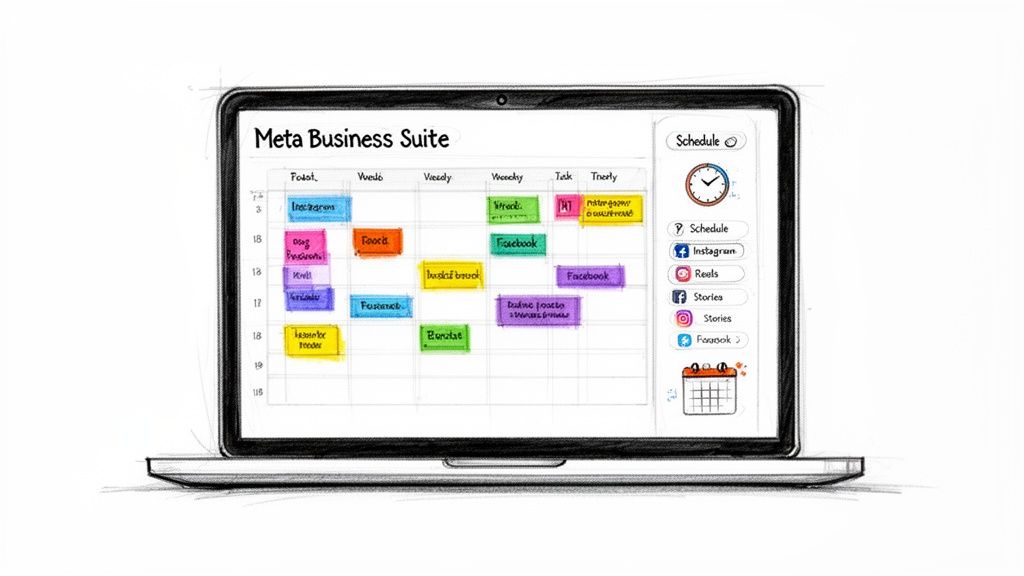
The real magic of the Business Suite is its planner. You get a single calendar view of all your scheduled and published posts across both Facebook and Instagram. It’s the easiest way to see where the gaps are.
Are you posting too many static images and not enough Reels? The calendar makes it obvious. That bird's-eye view is invaluable for building a balanced content strategy that actually performs.
Productivity Tip: Look for the "Customize post for Facebook and Instagram" option when creating a post. It lets you write a different caption for each platform in the same workflow. This is a huge time-saver and ensures your message feels native to each audience.
How to Schedule Posts
Once your accounts are linked, getting a post scheduled is pretty simple. Here’s the basic flow:
- First, head to the Planner from your main Business Suite dashboard. You'll find it in the left-hand menu.
- Click the "Create post" button. This is where you’ll upload your photo, video for a Reel, or a batch of images for a carousel or Story.
- Next, write your caption, drop in your hashtags, and tag any relevant accounts. Instead of hitting "Publish," look for the "Schedule" button. Just pick the date and time you want it to go live.
This workflow turns Instagram management from a reactive, daily chore into a planned, productive part of your week. If you want to get more efficient with your content planning, check out our guide on how to schedule social media posts.
Go Pro with a Third-Party Scheduler
Once you start managing more than one social account, or simply want to get more strategic, Meta's tools can feel a bit limiting. This is where third-party social media management tools really shine. They go beyond basic scheduling, turning content management from a daily chore into a hands-off, automated workflow. If you want to get serious about posting to Instagram from a desktop, this is the way to go.
Many of these tools now include AI that can help you break through creative blocks. For example, AI-powered schedulers like Postful can take a single piece of content, like a new blog post, and instantly spin it into multiple formats. In just a few minutes, that one article can become a multi-slide Instagram carousel, a detailed LinkedIn post, and a thread for X (formerly Twitter).
This kind of AI assistance is a massive time-saver, letting you get the most mileage out of your best work without starting from scratch every time.
Finding the Right Scheduler for Your Business
While AI is a powerful addition, different tools are built for different needs. Buffer, for instance, is well-loved for its incredibly clean interface and simple, no-fuss scheduling. Hootsuite is another popular choice, especially for teams, because of its deep analytics and collaboration features.
- Postful: Perfect for solopreneurs who need AI to help with content ideas and repurposing. Pricing: see website for details.
- Buffer: A great fit if you value a simple, straightforward scheduling experience. Pricing: see website for details.
- Hootsuite: A strong contender for teams that need robust analytics and user management. Pricing: see website for details.
The big takeaway here is that these platforms are more than just schedulers—they're productivity engines. They exist to give you back time to focus on running your business.
For even more efficiency, you can look into specialized Instagram automation tools like Clever Messenger that handle more advanced scheduling and engagement.
If you’re still weighing your options, our guide to the best free social media schedulers breaks down even more choices. The right tool will help you build a consistent presence on Instagram, all without being tethered to your phone.
Use the Browser Inspector Trick for Quick Uploads
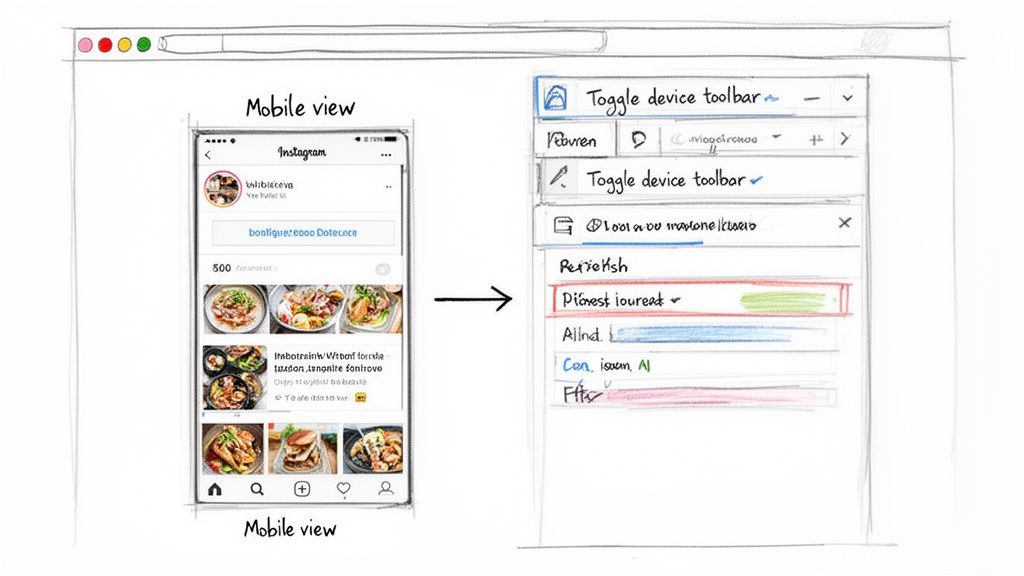
Ever needed to get an Instagram Story up right now, but you’re stuck on your desktop? There's a classic workaround that still works like a charm: the browser inspector trick. It basically fools your browser into thinking it’s a mobile device, unlocking the mobile version of Instagram.com on your computer.
Think of this as your go-to backup plan. It doesn't require any extra software, and it’s a quick, free way to get content live when other methods aren’t an option. It's especially handy for posting simple Stories, something the native desktop uploader still can't do.
How to Access the Mobile View
This might sound a little technical, but it’s surprisingly straightforward. You're just opening your browser’s built-in developer tools and hitting refresh. Here’s how it generally works on most browsers:
- First, log into your Instagram account on your computer.
- Right-click anywhere on the page and choose "Inspect" from the menu that pops up. This will open a new panel.
- Look for an icon that looks like a phone and a tablet (it's often labeled "Toggle device toolbar") and click it.
- Finally, just refresh the page. You should see the familiar mobile interface appear, complete with the bottom navigation bar and the "+" button for posting.
This is a fantastic trick to have in your back pocket, but it’s not meant to be your primary workflow. It can be a bit clunky at times, but it's a lifesaver when you need it.
Having a solid desktop workaround is more important than you might think. Believe it or not, Instagram’s desktop website is the fourth most-visited site globally, which shows just how many people rely on desktop access. You can discover more insights about global website traffic on The Social Shepherd.
Answering Your Desktop Posting Questions
So, you know it's possible to post to Instagram from your computer. But if you’re like most business owners I talk to, you probably still have a few lingering questions.
Let’s tackle some of the most common ones we hear. We’ll get into the nitty-gritty of content types, image specs, and security so you can manage your Instagram workflow from your desktop with total confidence.
Can You Post Reels and Stories From Desktop?
Yes, absolutely. For both Reels and Stories, your best bet is using Meta Business Suite or a dedicated third-party scheduling tool. These platforms are built from the ground up to handle every content type, right from your desktop.
While you can upload Reels directly on Instagram.com, it doesn’t support Stories. And that browser inspector trick we mentioned earlier? It’s a decent workaround for a quick, simple Story, but it's clunky and lacks the powerful scheduling and design features you get with a proper tool.
What Are the Ideal Image Specs for Desktop Uploads?
Even when you’re posting from a desktop, getting your image specs right is crucial. Sticking to Instagram’s recommended sizes prevents awkward cropping and ensures your photos look sharp on your feed.
Here’s what I always recommend:
- Square Posts: A 1:1 ratio is classic. Go with 1080 x 1080 pixels.
- Portrait Posts: Use a 4:5 ratio at 1080 x 1350 pixels. This is my favorite because it takes up more screen real estate on mobile feeds.
- Landscape Posts: Aim for a 1.91:1 ratio, which comes out to about 1080 x 566 pixels.
I can't stress this enough: always export your final images from your editing software as high-quality JPEGs or PNGs. This one small step makes a huge difference in maintaining brand consistency and a professional look.
Is It Safe to Use Third-Party Apps for Posting?
It is, as long as you stick with reputable tools. Authorized platforms like Postful, Buffer, or Hootsuite connect to your account using Instagram's official API.
This is a secure method approved by Meta that doesn’t require you to share your password directly with the app. You can manage your content with peace of mind knowing your account is safe.
Ready to simplify your social media and turn your work into more business? With Postful, you get AI-powered post suggestions, simple scheduling, and easy content repurposing. Start creating content faster with Postful.