
Posting a Facebook Story is deceptively simple: you just tap 'Create Story' on the app, pick a photo or video, throw in some text or music, and hit share. In seconds, you can get in-the-moment content out to your audience.
But let's back up. Before we get into the nitty-gritty of how to post, it’s worth understanding why Stories are such a powerful tool in the first place, especially for boosting productivity and engagement.
Why Facebook Stories Are Your Secret Engagement Weapon
I see a lot of people treat Stories as an afterthought, but they’re a strategic tool for building real, authentic connections. Their biggest strength is their temporary, 24-hour format. This creates a natural sense of urgency that encourages your followers to check in daily so they don’t miss out.
Because they disappear, Stories are the perfect place for raw, unpolished content. The kind of stuff that feels genuine, relatable, and trustworthy.
Driving Connection Through Urgency
That temporary nature taps directly into what people call "fear of missing out" (FOMO). This dynamic drives more frequent and immediate engagement than you'll ever get from a permanent feed post.
Here’s a practical example: A local café can post a daily Story showing their "pastry of the day" at 8 AM. This creates a small, productive ritual for their content manager and a daily check-in habit for customers. Or a freelance consultant at a conference could share 15-second video tips after each session, building authority with timely insights that are gone by tomorrow.
This simple infographic really nails how that temporary format leads to stronger loyalty.
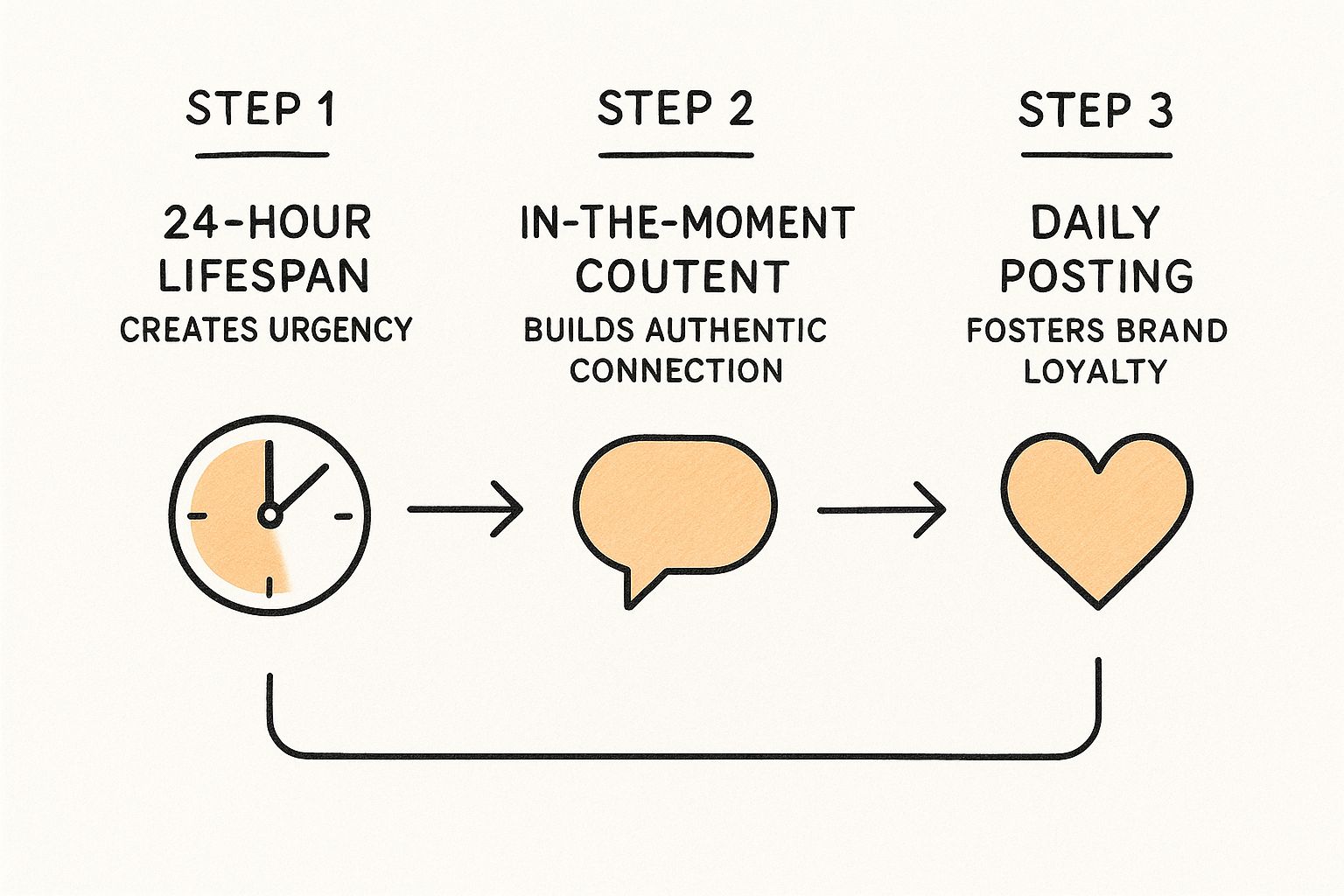
As you can see, it's a clear path from creating urgency with a 24-hour lifespan to building authentic connections, which ultimately fosters brand loyalty through that consistent, daily interaction.
The Power of Daily Interaction
The scale of this feature is just massive. Get this: Facebook Stories are used by over 500 million people every single day. That's a huge, active audience that's already conditioned to watch and engage with this type of content.
By their very design, Stories feel less like polished advertising and more like a conversation. They offer a behind-the-scenes look that builds community and fosters a real connection between you and your followers.
Of course, Stories are just one piece of the puzzle. It always helps to brush up on general strategies for how to boost social media engagement across all your channels. When you start framing Stories as a core part of your content plan, you really set the stage for deeper, more meaningful interactions.
Alright, let's get into the good stuff: actually creating and sharing your first Facebook Story.
Once you know why you're posting Stories, the how is pretty simple. The creation tools are built to be fast, letting you get an idea out of your head and in front of your audience in just a few minutes. It really does all start with a single tap.
From the main screen of your Facebook app, look for the Create Story button right at the top of your feed. Tapping it opens up the Story creator, where you can immediately pull in photos or videos straight from your phone's camera roll.
A Quick Workflow Tip: Source Your Content Ahead of Time
Here's a small change that makes a huge difference in productivity: create a dedicated album on your phone just for "Story Content." Before you even think about posting, you can drop pre-approved visuals, behind-the-scenes clips, or branded graphics in there. This simple habit saves you from the endless scroll through thousands of personal photos, making the whole process way faster when you're on the clock. For teams, using a shared cloud folder (like Google Drive or Dropbox) for pre-approved Story assets ensures everyone has quick access.
Once you’ve picked your photo or video, it's time to add some personality. This is where you can turn a simple post into something interactive and eye-catching.
The goal isn't just to share a picture; it's to start a conversation. Interactive elements like polls and quizzes are your best tools for turning passive viewers into active participants.
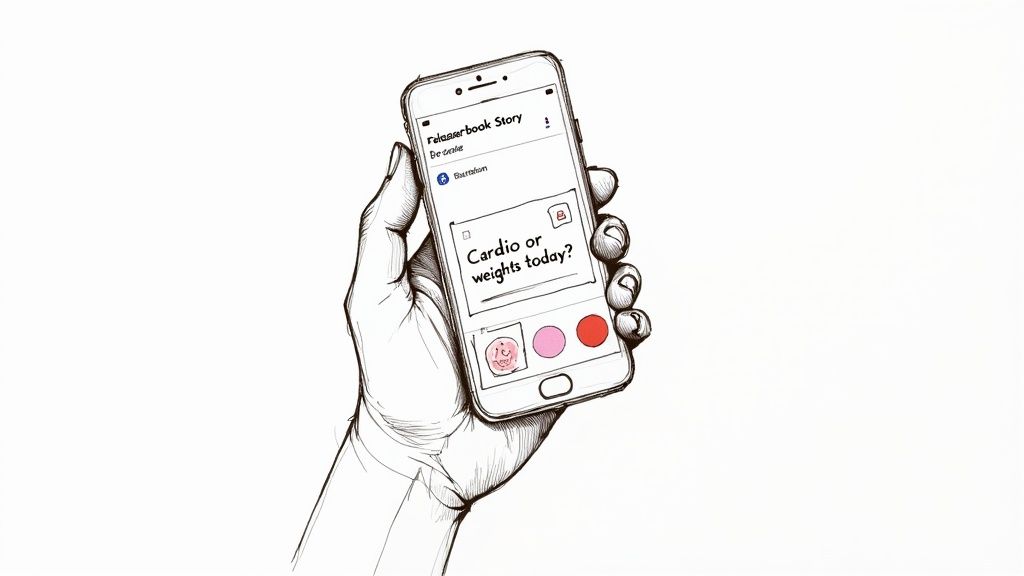
For example, a personal trainer could post a short workout clip and use a poll sticker to ask, "Cardio or weights today?" It’s a simple question, but it does more than just gather feedback—it pulls the audience directly into the content.
Adding Your Creative Layers
The tools inside the Story editor are your creative playground. You can easily add text to give context, drop in some music to set the mood, or use stickers to inject a bit of fun.
You definitely don't need to use every feature on every single Story. Just focus on what serves the message best. A clean, simple text overlay is perfect for a quick announcement, while a trending music track works wonders for a celebratory moment.
Essential Facebook Story Tools and When to Use Them
To speed things up, it helps to know which tools to reach for and when. Here’s a quick-glance table of the features you'll probably use most often.
| Feature | What It Does | Productivity Tip |
|---|---|---|
| Text | Adds text overlays in various fonts and colors. | Save your brand color's hex code in a notes app for quick copy-pasting to maintain consistency. |
| Stickers | Includes interactive polls, quizzes, GIFs, and location tags. | Use the "Poll" sticker to ask for quick opinions. It's one of the easiest ways to boost engagement signals. |
| Music | Adds licensed music tracks to your Story. | Pick a trending song to make your Story feel more current and relevant to what people are already hearing. |
| Effects | Applies filters and AR effects to your media. | Find one or two filters that align with your brand's aesthetic and stick with them for a consistent look. |
After adding your creative touches, the last step is to get it out there. You’ll get a chance to review your privacy settings (which we'll dig into later) and then just hit the Share button.
And just like that, your Story is live for the next 24 hours, ready to engage your audience.
Using Advanced Features to Make Your Stories Stand Out
Once you get the hang of the basics, it’s time to play with the features that actually make your Stories memorable. Moving beyond simple text and stickers is what stops the scroll and keeps your audience watching.
One of the most powerful—and seriously underused—tools is the Green Screen effect. This feature lets you drop any image or video from your camera roll right into your background. Think about it: a travel blogger could use it to "stand" in front of the Eiffel Tower while sharing tips for visiting Paris. It’s way more dynamic than just another talking head video.
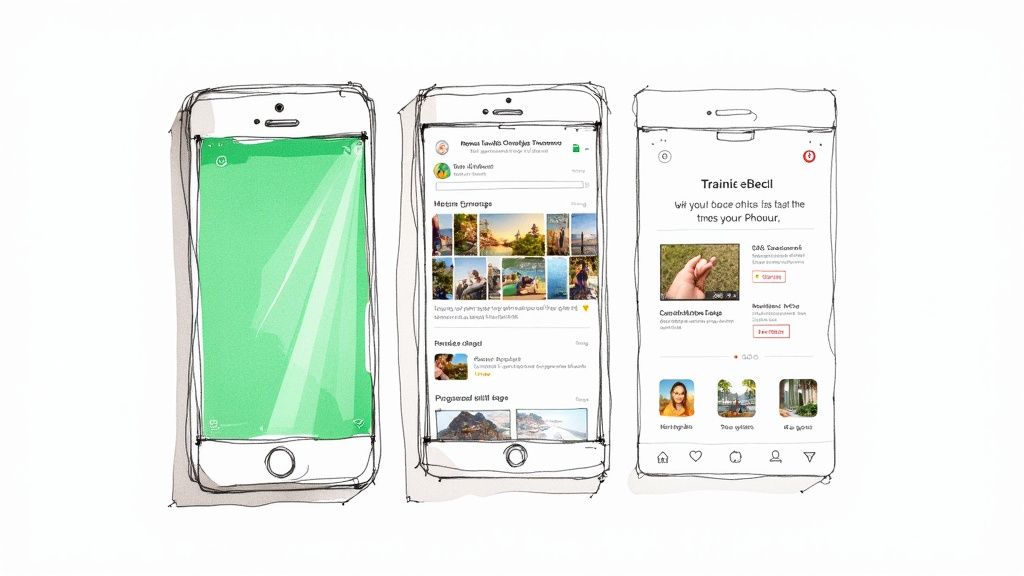
You can apply that same creative thinking to multi-clip narratives. Instead of just one static photo, try stringing together several photos and videos to tell a cohesive story. This is perfect for showing a process—like a chef demonstrating a recipe from start to finish in a few quick clips.
Creating a Polished and Consistent Look
If you're aiming for a more professional vibe, it pays to build a workflow outside of the Facebook app. I've found that using a tool like Canva or Adobe Express to design branded templates is a great way to keep your look consistent across all your Stories.
This little productivity hack saves a ton of time. You can create a few core templates with your brand's fonts and colors, then just pop in new photos and text for each Story you create. This workflow is especially useful for recurring content like "Tip Tuesday" or "Employee Spotlight" posts.
Creating a consistent visual identity makes your content instantly recognizable. When a follower sees your signature style, they know it’s you before they even read your name.
Using Stickers for Strategic Engagement
Stickers aren't just for fun—they're powerful tools for interaction. A big part of knowing how to post a Story on Facebook effectively is using these features with a clear goal in mind.
Here are a few practical examples for using them strategically:
- Link Sticker: A B2B company can use this to drive traffic directly to a new case study, converting Story viewers into qualified leads.
- Quiz Sticker: A financial advisor could create a short quiz like, "How much do you know about retirement savings?" to educate their audience and position themselves as an expert.
- Poll Sticker: A retailer could ask, "Which new product should we stock next?" and directly involve customers in business decisions, turning engagement into valuable market research.
Ultimately, mastering these advanced features will help you create far more engaging and effective content. And once you've got your content game down, exploring strategies for scheduling your Facebook posts can be a total game-changer for staying consistent.
Controlling Who Sees Your Facebook Stories
Sharing content confidently means knowing exactly who sees it. Learning how to post a story on Facebook isn't just about the creative tools—it's also about mastering the privacy settings so you can share with total peace of mind.
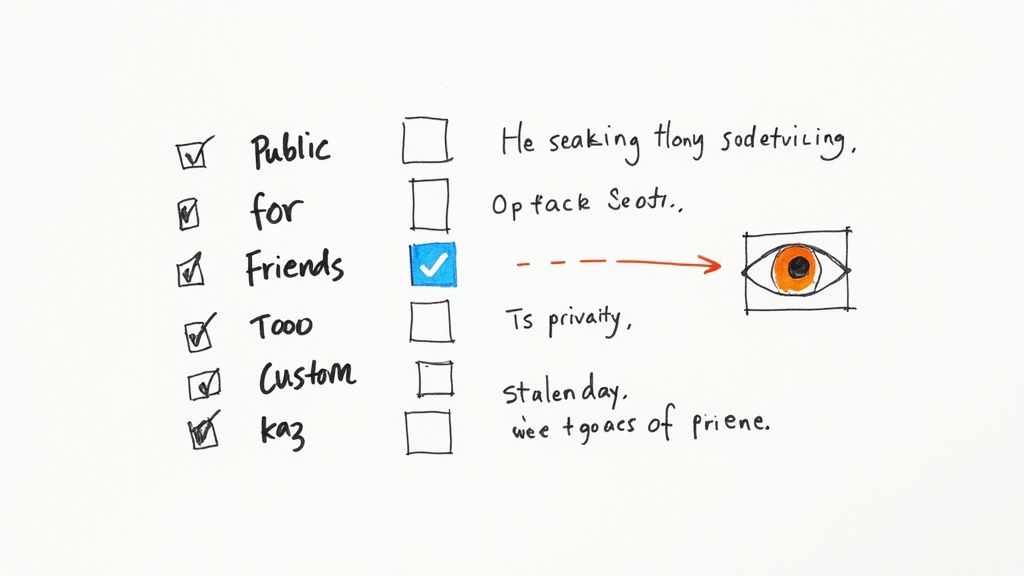
Before you hit that final "Share," Facebook gives you a critical choice: who is this for? This simple step is your command center for controlling exactly who sees what you post.
Your privacy settings give you the power to segment your audience for every single Story. This means you can post a business announcement to the public and, five minutes later, share a family photo with only a select group of relatives.
Choosing the Right Audience for Your Story
Getting familiar with your audience options is key. Each setting serves a different purpose, and picking the right one ensures your content lands exactly where you want it.
Here’s a quick rundown of your main choices:
- Public: Your Story is visible to absolutely anyone, including followers and even random visitors to your profile. This is the perfect setting for a small business launching a new product or a creator sharing a general life update.
- Friends: Just what it sounds like. Only your connected Facebook friends can see the Story. This is great for more personal updates, like sharing your weekend plans or a casual photo from a night out.
- Custom: This is where you get really granular. You can create specific lists of people who can see your story, or—just as importantly—hide it from certain individuals.
For example, a project manager could create a "Project Team" custom list to share quick, informal updates that don't require an email, improving team communication and productivity. At the same time, you can use the "Hide Story From" option to exclude a coworker from seeing a post about your job search.
This level of control is fundamental. You can learn more about how data is handled by reviewing our detailed privacy policy. For business pages, another useful tool is the ability to disable replies on your Stories, which helps streamline communication by funneling all feedback to DMs or comments on your main feed posts.
Checking Your Story Performance to Improve Your Content
Hitting “Share to Story” isn’t the end of the process. In fact, that’s where the real work begins. The secret to getting better at Stories is understanding what your audience actually connects with—and then doing more of that. It’s all about closing the loop between creating content and analyzing what happens next.
Once your Story has been up for a bit, you can get a quick look at its performance. Just tap on your own Story and swipe up from the bottom of the screen.
On a personal profile, you’ll see a simple list of everyone who has viewed it. It's a straightforward way to gauge your reach among friends and family.
But if you added interactive stickers like polls or quizzes, this is where you strike gold. Say you asked followers to vote on two different product mockups; the results are right there. This isn't just fluffy engagement—it’s quick, actionable market research.
From Data to Actionable Insights
For anyone running a business page, the data goes a lot deeper. While the in-app view is great for a quick pulse check, the real insights are hiding in the Meta Business Suite.
This is where you can track metrics like reach, impressions, and sticker taps over a longer period. It’s how you move from just posting stuff to building a smart, data-informed content strategy.
I’ve found that a simple, repeatable workflow makes this incredibly effective:
- Post Your Story: Create your content with a clear goal in mind. Are you trying to get feedback, drive clicks to your website, or just entertain?
- Analyze the Data: After 24 hours, dive into the insights. Which Stories got the most views? Did that Q&A sticker get more action than the simple poll?
- Adapt and Iterate: Take what you learned and apply it to your next post. If behind-the-scenes videos are consistently outperforming your polished graphics, it’s time to make them a regular feature.
This cycle of posting, analyzing, and adapting is the key to improving your content. It stops you from guessing what your audience wants and lets their actions guide your strategy.
Following this approach means you’re not just learning how to post a Story on Facebook, but how to do it well. Every Story becomes a small experiment, helping you sharpen your message and build a stronger connection with your audience, day by day.
A Few Common Questions About Facebook Stories
Even once you get the hang of posting Facebook Stories, a few tricky questions always seem to come up. I get these all the time, so let's walk through them to clear things up so you can post with confidence.
Optimizing Your Story Content
A great question I hear often is, "What's the best length for a video Story?" While Facebook lets you post individual clips up to 60 seconds long, that doesn't mean you should. Viewer attention spans are notoriously short.
For the biggest impact, I always tell people to aim for clips under 15 seconds. Shorter, punchier content just performs better. It keeps your audience engaged and tapping through to see what's next instead of swiping away out of boredom.
A productive workflow for longer content is to use a video editing app like CapCut or InShot to pre-slice your video into 15-second segments before uploading. This gives you more control over the cuts and ensures a seamless viewing experience.
This little adjustment shows you respect your audience's time and makes it more likely they'll stick around for your whole Story.
Troubleshooting Common Problems
"Why can't I add a link to my Story?" This is probably the most common point of frustration I see. The ability to add a tappable link sticker is something Facebook generally reserves for business or creator accounts. The exact criteria can change, so it's not always available for personal profiles.
Another one is about music. If you've noticed your music library feels a bit limited, it’s almost certainly because you're using a business account. Because of licensing agreements, business accounts get access to a royalty-free sound collection. It's great, but it's much smaller than the massive pop-music library available to personal profiles.
"Why did my Story disappear before 24 hours?" This one is rare, but it can be alarming. It’s almost always a temporary glitch with the app. If your Story vanishes, the first thing to do is restart the app or check your internet connection. In most cases, it pops right back up.
And finally, "Can I see who screenshotted my Story?" The short answer is no. Unlike some other platforms, Facebook does not notify you when someone takes a screenshot or screen recording of your Story. It's a good reminder to only share things you're comfortable with anyone potentially saving.
For anyone serious about building a more efficient and impactful presence, using dedicated tools can be a game-changer. Exploring a platform that simplifies your whole content workflow helps you stay consistent and focused on growth. If you want to learn more, you can see how to get started with Postful.
Ready to stop guessing and start growing? Postful is your AI-powered partner for creating consistent, high-quality social media content without the grind. Join the waitlist today to build your brand and connect with your audience. https://postful.ai
Article created using Outrank